
How Can I Use My Voice to Control My Smartphone?
Streamline your daily routine by mastering hands-free commands for scheduling, navigation, and communication.
You can control your smartphone hands-free by enabling the built-in voice assistant—Siri on iPhone or Gemini/Google Assistant on Android. Once activated in your settings, you can simply speak commands like "remind me to call the doctor at 3 p.m." or "text my spouse I am on my way" to save time.
This guide explains how to activate and use built-in voice assistants to manage daily tasks without touching your screen. Learn to set up Siri or Google Assistant to handle reminders, calls, and navigation using natural language.
How to Get Your Phone Ready to Listen
Before you can start talking to your phone, you must ensure the voice assistant is enabled and trained to recognize your specific voice. On an iPhone, navigate to Settings and select Apple Intelligence & Siri or Siri & Search. From there, tap Talk to Siri and toggle on the option to listen for your wake word. Follow the on-screen prompts to record your voice, which helps the device distinguish your commands from background noise.
For Android users, the process is similar. Open the Google app, tap your profile icon, and navigate to Settings followed by Google Assistant. Ensure Hey Google is toggled on and complete the voice match setup. Once these steps are finished, your phone will remain in a low-power listening state, ready to wake up the moment it hears your designated trigger phrase.
If you find that your phone is not responding, check that your microphone is not obstructed by a case or debris. Additionally, ensure your software is updated to the latest version, as manufacturers frequently release patches that improve voice recognition accuracy and add new capabilities to the assistant.
Mastering the Most Useful Daily Commands
The most effective way to use your voice assistant is to focus on tasks that would otherwise require multiple taps or menu navigation. Start by using your assistant for time-sensitive reminders, such as saying, "Remind me to take my medication at 8 p.m." or "Remind me to call the office when I get home." These commands create a reliable digital memory that ensures you never miss a deadline.
Communication is another area where voice control excels. You can dictate messages by saying, "Text my brother that I am running ten minutes late," or initiate calls by saying, "Call the pharmacy." To make this even faster, ensure your most important contacts are saved with simple, clear names in your address book. This prevents the assistant from getting confused by complex or duplicate names.
Finally, use your assistant for quick information retrieval and navigation. Instead of typing into a search bar, ask, "What is the weather today?" or "Give me directions to the nearest grocery store." By keeping your requests specific and providing all necessary details in one sentence, you minimize the need for follow-up questions and keep your workflow moving smoothly.
Advanced Tips for Hands-Free Efficiency
Once you are comfortable with basic commands, you can begin to chain requests or use your assistant in more challenging environments. Many modern assistants support back-to-back requests, meaning you can ask for the weather and then immediately follow up with a reminder without repeating the wake word. This creates a more natural, conversational flow that feels less like a robotic interaction.
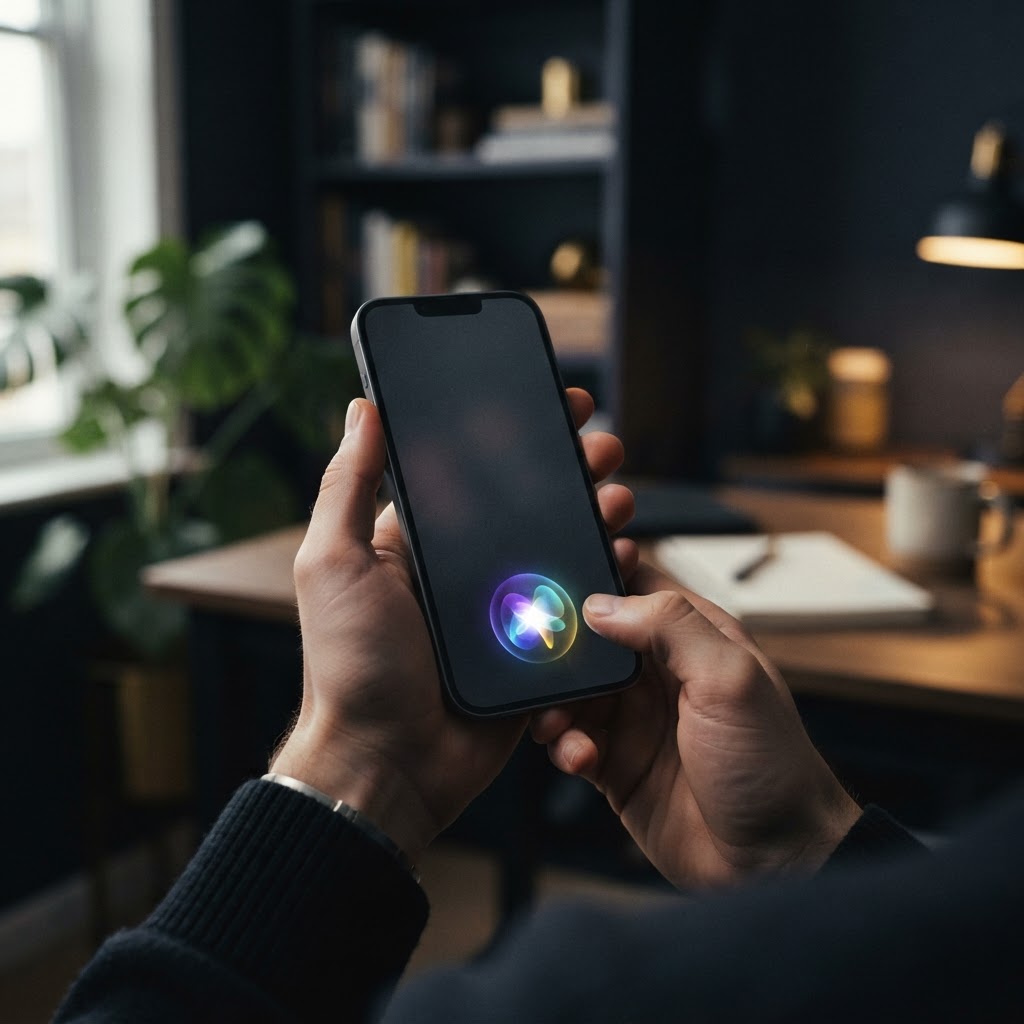
If you are in a public space where you prefer not to speak, remember that you can often type your requests to your assistant. On an iPhone, you can switch to a text-based interface within the Siri menu, allowing you to get the benefits of AI assistance without speaking out loud. This is particularly useful in quiet environments like libraries or waiting rooms.
Lastly, explore how your assistant interacts with third-party applications. Many apps for music, navigation, and productivity have built-in support for voice commands. You can ask your phone to "Play my workout playlist on Spotify" or "Add milk to my shopping list in Todoist." By integrating these tools, you turn your smartphone into a truly hands-free personal assistant that manages your digital life while you focus on your physical tasks.

Voice Assistant Quick-Start Checklist
- Enable 'Hey Siri' or 'Hey Google' in your device settings
- Complete the voice training prompts to improve accuracy
- Save key contacts with simple names like 'Pharmacy' or 'Mom'
- Use natural, conversational language for your requests
- Press and hold the side button if you prefer not to speak aloud
- Ask 'What can you do?' to discover new app integrations